
How to get your tutoring calendar under control
Real availability, buffers between classes, time zones that behave and no double bookings — how to run a tutoring calendar you can actually trust.
The MyChamba Team · Published 14 September 2026 · 10 min read
The real cause of double bookings
Almost nobody double-books a lesson by forgetting one. They double-book because their life is recorded in one place and their teaching in another.
The dentist went in your phone, the family thing went in a shared calendar your partner keeps, the classes live in whatever tool your students book through, and no single view contains all three. The moment those diverge, a booking system doing exactly what you told it will cheerfully sell an hour you had already spent.
The fix is not discipline, it is plumbing: one calendar that everything is either written to or read from. It does not matter much which one you pick, as long as it is the one you actually look at on your phone. Everything else — your teaching availability, your booking link, your reminders — should either write into it or read out of it, so that a busy Tuesday is busy everywhere at once.
Worth being honest here: most of the pain of a tutoring calendar is not clever scheduling, it is this one structural decision. A tutor with mediocre availability rules and one true calendar has a calmer week than a tutor with beautiful rules and two calendars that disagree.
Set availability you would honour on a bad week
When you first set up a booking page it is very tempting to open everything. More hours, more bookings, more income — and then someone books 7am on a Monday in January and you discover you did not mean it.
Availability is not an aspiration. It is a promise, and every block you switch on is an hour a stranger may take from you at two days' notice.
So set it for your worst realistic week, not your best: the hours you would still teach cheerfully when you have slept badly and have a cold. You can always add a one-off class outside those hours when it suits you — booking yourself into your own calendar is entirely under your control — but you cannot un-sell an hour somebody has already booked without spending the goodwill you were trying to build.
Then decide how much notice you need. Somewhere between twelve and twenty-four hours suits most tutors: it stops someone booking a lesson for an hour from now, while you are at the supermarket, without making you impossible to book at all. If you offer a genuinely last-minute service, set it to nothing deliberately — the point is that it is a decision rather than a default.
Finally, decide whether bookings should be confirmed automatically or wait for your yes. Automatic is calmer if your week is settled and you trust your own grid. Manual is better if your life moves around, because it gives you a chance to say no before your student has a confirmation in their inbox — at the cost of a request sitting there while you sleep. Neither is more professional. Pick the one that matches how predictable your week actually is.
Buffer time between classes
Back-to-back lessons look efficient on a grid and are brutal in real life. A lesson that overruns by four minutes makes you late for the next one. Notes never get written because the next student is already in the waiting room. By the fourth consecutive hour you are teaching from memory, and your last student of the day pays the same rate as the first for a visibly worse class.
Fifteen to thirty minutes between lessons is usually enough: time to finish properly, write your two lines of notes, refill the mug, and start the next one in the right frame of mind.
The easiest way to make that real is to build it into the grid rather than relying on willpower. If your availability offers 9:00, 10:30 and 12:00 instead of 9:00, 10:00 and 11:00, the gap is simply part of the shape of your day and nobody has to defend it. It is the tutoring version of time blocking — deciding in advance what each part of the day is for, instead of letting whoever books first decide for you.
Do the same at a larger scale. Three or four consecutive teaching hours is most people's real ceiling, and a proper break in the middle of the day is not a luxury — it is what makes the evening block possible. If the last lesson of your day is routinely your worst, the problem is not your energy. It is the shape of the grid.
Stop double-booking lessons
- Start from one calendar. Once everything reads from the same grid, most double bookings disappear on their own — the hour you blocked for a hospital appointment simply never appears as bookable. What is left is three specific gaps, and all three are worth closing deliberately.
- The pending request. When a student asks for a slot, that slot has to be held while you decide, or two students will ask for Thursday at six and both will believe they have it. A booking system that only reserves a slot once you accept it is a system that will eventually embarrass you at the worst possible moment.
- Your own manual bookings. Tutors add classes by hand all the time — the student who messaged you directly, the make-up lesson, the friend. Add that class where the bookings live and let it sync outwards; put it only in your personal calendar and you have recreated the two-calendar problem inside a single week.
- The clash you genuinely mean. Sometimes you really do want two things at the same time, or a class that sits on top of an event that no longer matters. A good system warns you, names the thing you are about to collide with, and then lets you say yes anyway — warnings you cannot override train people to stop reading warnings, which is how the important one gets ignored.
Teaching students in other time zones
Every tutor who teaches internationally has lost an hour to this: the lesson that was at four for you and at four for them, in two different fours. It is never the exotic time zones that cause it. It is the near ones, where a one-hour difference is small enough to be assumed and easy to forget.
Fix it structurally. Set your own teaching time zone once, and make sure every student sees your week converted into theirs rather than into yours — a student in Bogotá looking at a grid of London hours will misread it eventually, however carefully you explained it.
Anything written down for a student, in a message or a confirmation, should say the time in their zone or say the zone out loud. "18:00" is an ambiguous message. "18:00 your time" is not.
The hard part is not the offset, it is daylight saving. Countries change their clocks on different dates, some change in the opposite direction, and plenty do not change at all. So a recurring class that has been at five for everybody since September can quietly become four for one of you for two weeks in spring, and then fix itself. It is not a bug and it will happen to you twice a year.
Put a reminder in your own calendar for the last week of March and the last week of October. Check what your recurring classes now look like in each student's local time, and message anybody whose lesson has moved into their working day or their child's bedtime. Two messages a year prevents the version of this that ends with a student sitting alone in a video call, which costs a great deal more than two messages.
How to block personal time with a Google Calendar event
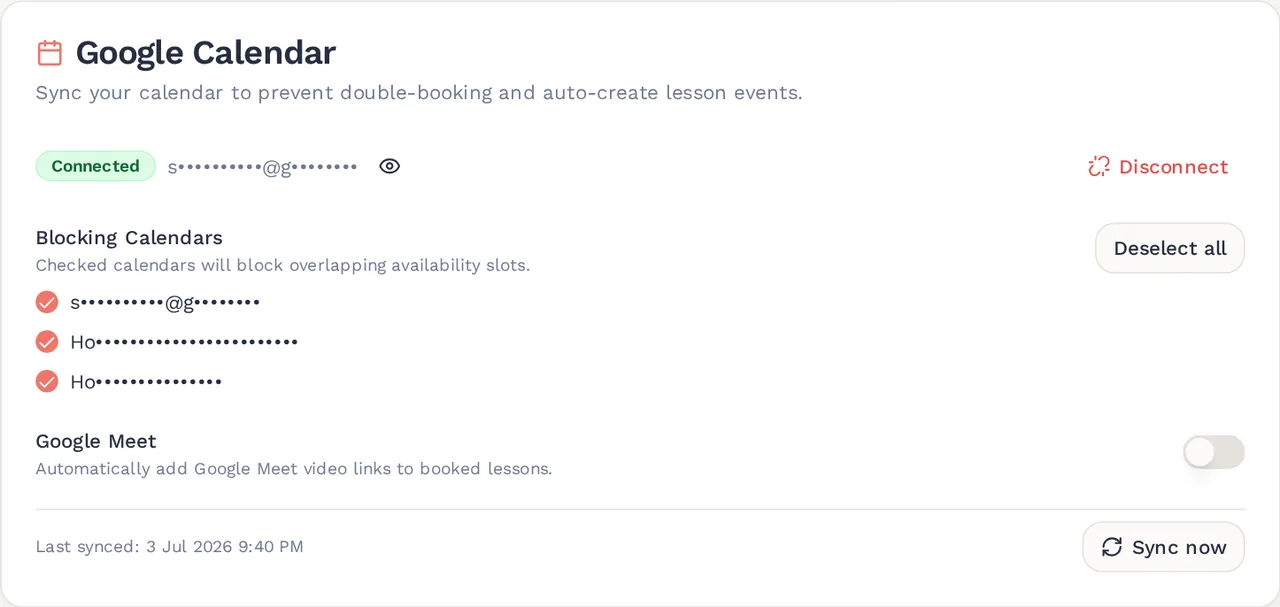
Here is the concrete version of "one calendar", because it is the single most useful thing you can set up. On MyChamba, connecting Google Calendar is a Pro feature and the controls live on the Availability page: open Availability, find the Google Calendar card, click Connect Google Calendar, and accept every permission Google offers. If you skip the calendar permissions, MyChamba finds no calendars and asks you to connect again.
Once connected, the card lists every calendar on your Google account under Blocking Calendars, with all of them ticked. Untick anything whose events should not hide your teaching slots — a public holidays calendar, a subscribed sports fixture list — and leave ticked the one where your real life goes. That list is built when you connect, so a calendar you create in Google afterwards appears once you disconnect and connect again. Here is the card once it is connected:
Now block the time. In Google Calendar, create the event on a ticked calendar, and give it a real start and end time — Thursday 13:00 to 15:00, not "Thursday". This is the step people get wrong: an all-day event makes your day look completely full in Google and blocks absolutely nothing, because it has no hours for a booking system to protect. If you want an afternoon protected, the event has to say which afternoon hours.
Save it, and the slots it overlaps stop being offered to students, on top of whatever your availability grid says. If you have only just created it and do not want to wait for the next sync, use Sync now on the Google Calendar card; Last synced underneath tells you when it last ran. MyChamba reads from one week back to eight weeks ahead, so a block you put in six months out is real in Google but will not start protecting slots until it comes into that window.
It works the other way too: once a class is confirmed, the lesson event is written into the main calendar of your Google account, so the calendar on your phone is complete without you retyping anything. Cancel the class and the event is removed again. Switch on Google Meet on the same card and each of those lesson events carries a Meet link, so the joining address lives in the event instead of in a message. And MyChamba skips its own lesson events when it reads, so a confirmed class never blocks its own slot twice.
Use this for anything that is genuinely yours — the school run, the gym, the two hours a week you keep for preparing materials. Personal time that is not on the calendar is just time you have not sold yet.
A calendar you can stop checking
The goal is not a full calendar. It is a calendar you believe, so that the hour marked free is genuinely free, the hour marked busy stays busy, and you can stop cross-referencing three apps before answering "are you free on Tuesday?". Almost everything above is in service of that one feeling.
MyChamba is built around it: one availability grid in your own time zone that every student reads in theirs, a minimum-notice rule the server actually enforces, and a clash warning before you save a class rather than after.
And on Pro, a Google Calendar connection where your own events hide your slots and confirmed lessons write themselves into the calendar you already carry around.
Further reading
- Sharing your calendar (Google Calendar Help)(opens in a new tab)
Useful if your personal events live on a different Google account — share that calendar so it shows up on the one account MyChamba connects to.
- Adding another calendar to your Google account (Google Calendar Help)(opens in a new tab)
MyChamba can only connect one Google account. If your commitments are split across two, add the other one here so everything blocks your availability in one place.
- Time zone converter (timeanddate.com)(opens in a new tab)
A quick way to check what your lesson time looks like in a student's zone before daylight saving shifts it.
Related guides
- Set your availability and booking rulesMark when you can teach, then set the two rules that decide how students may book it.
- Booking requests and what each status meansAnswer the classes students ask for, and know what pending, confirmed and cancelled each do.
- Connect your Google CalendarStop double bookings, have lesson events written for you, and choose which calendars are read.
Run your tutoring from one place
MyChamba keeps your students, your schedule, your hours and your payments together — free for up to 5 students, and no commission on what you earn.
Create your free account